Password and 2FA
Account security
The Account security page allows you to change your password and enable two-factor authentication (2FA).
You can access this page by clicking your username in the top right corner of the page and selecting Account settings from the dropdown menu and then clicking Account security in the left sidebar.
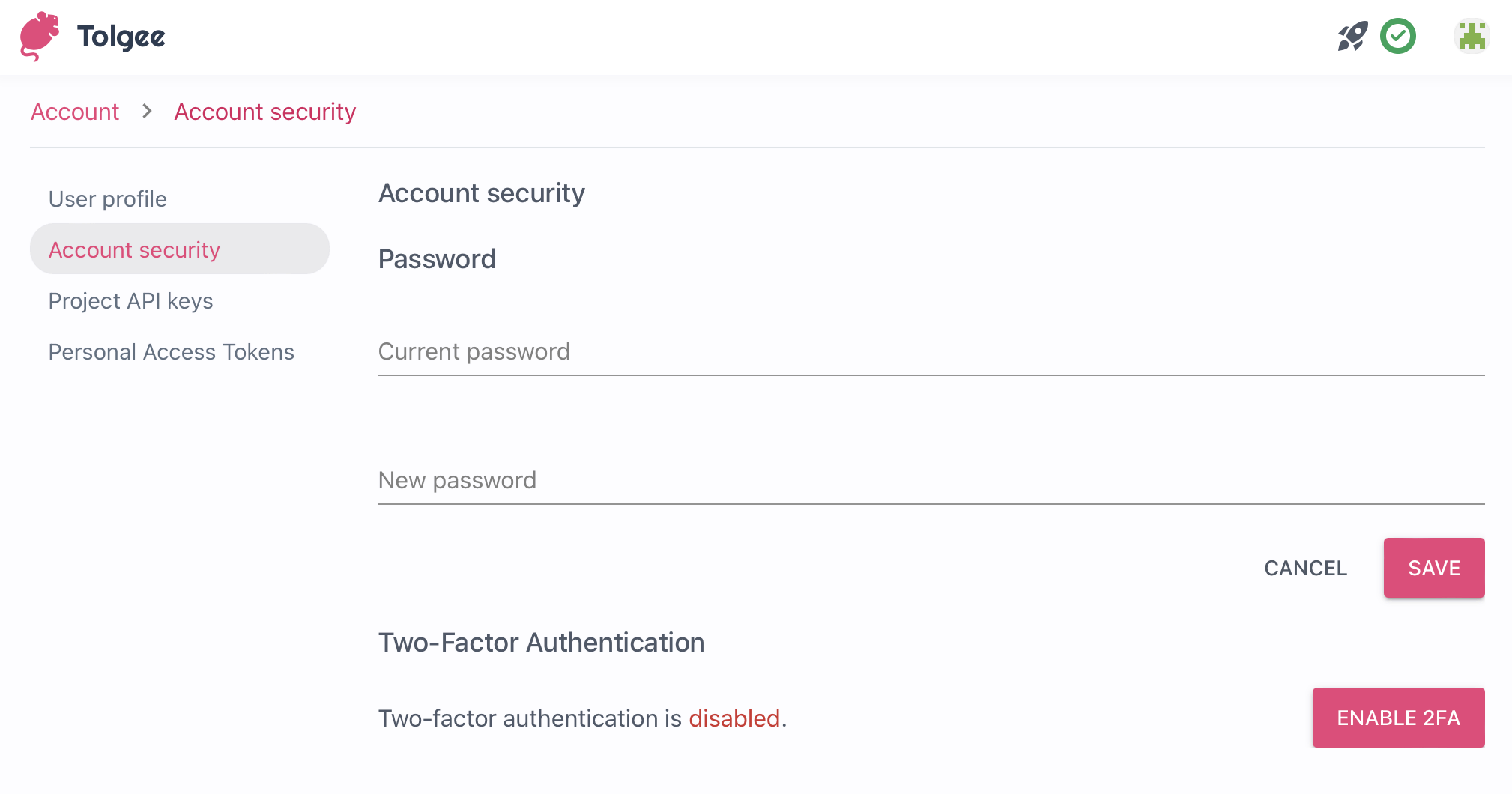
Two-Factor Authentication
Two-Factor Authentication (2FA) is a security feature that requires you to enter a code in addition to your password when you log in. This code is generated by an app on your phone. We recommend enabling 2FA to protect your account.
Enable Two-Factor Authentication
To enable 2FA, click the Enable 2FA button. You will be prompted to enter your password and a code generated by an app on your phone.
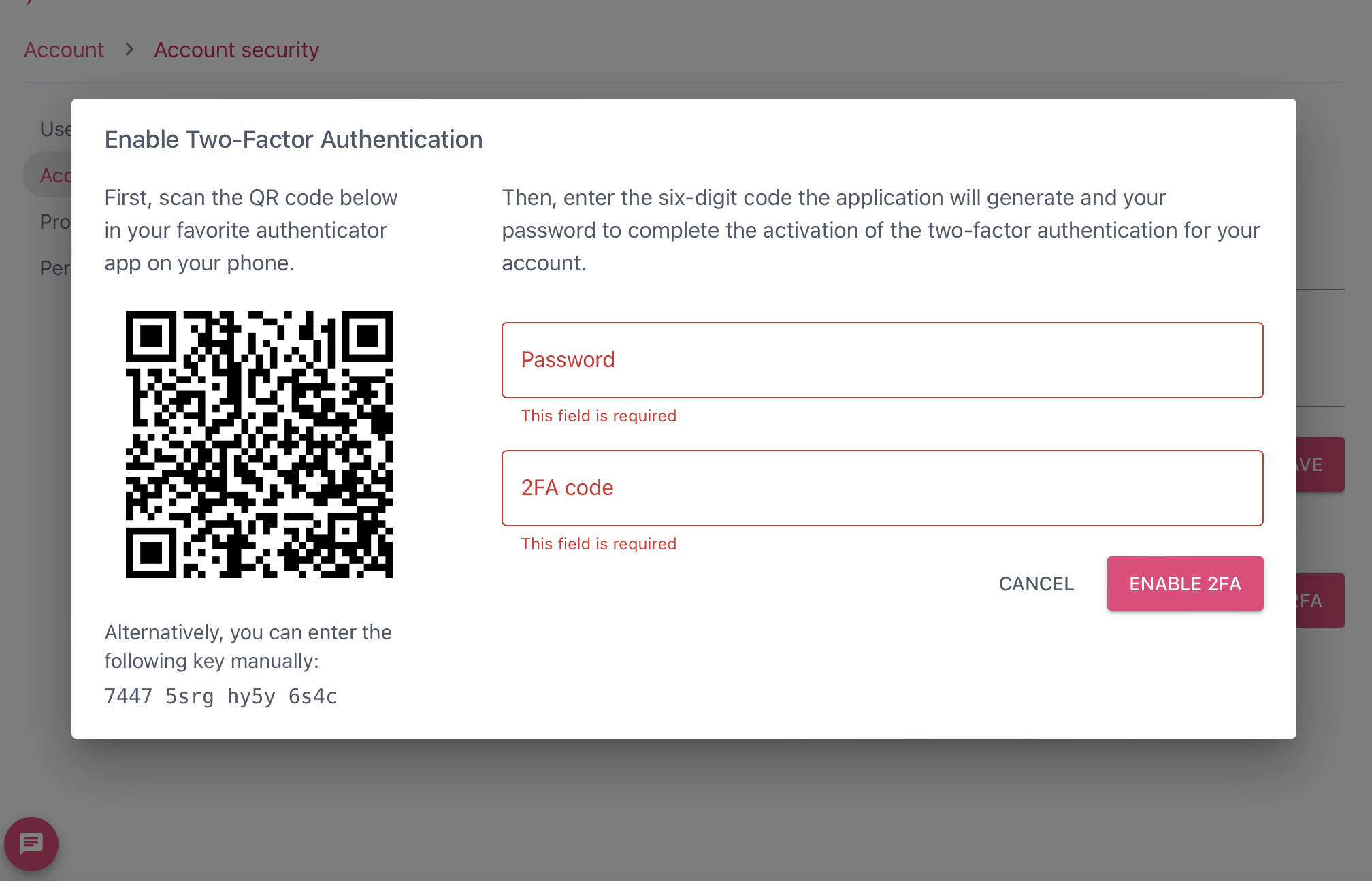
After you confirm to enable 2FA, recovery codes will be generated. Write down these codes and keep them in a safe place. You will need them if you lose access to your phone.
Check Users' Two-Factor Authentication Status
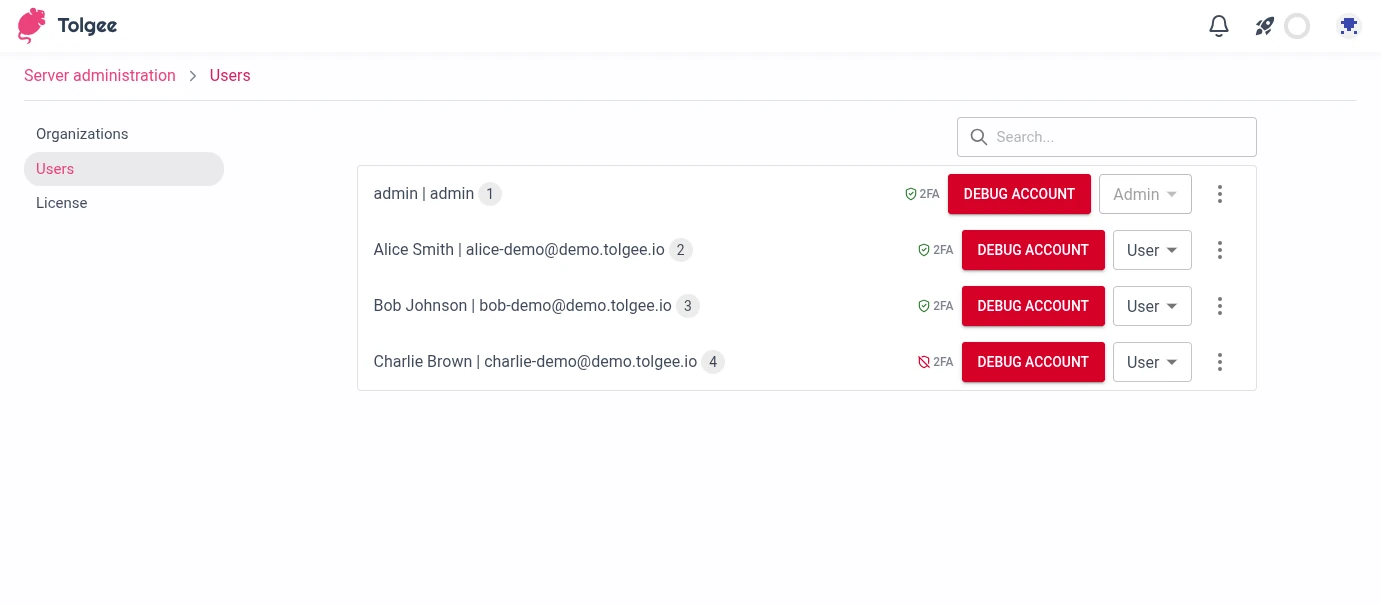
To see which users have 2FA enabled, look for the 2FA indicator in the user lists throughout the application:
- Project members
- Organization members
- Server users management (self-hosted instances only)
2FA and password reset
Resetting your password does not disable two-factor authentication. Your TOTP (Time-based One-Time Password) secret and recovery codes stay intact, and the reset form itself does not ask for a 2FA code. The next time you log in, you will be prompted for your 2FA code as usual.
If you have also lost access to your 2FA device, use one of your recovery codes at the 2FA prompt during login.
Resetting a forgotten password
If you forgot your password, you can reset it from the login screen without signing in:
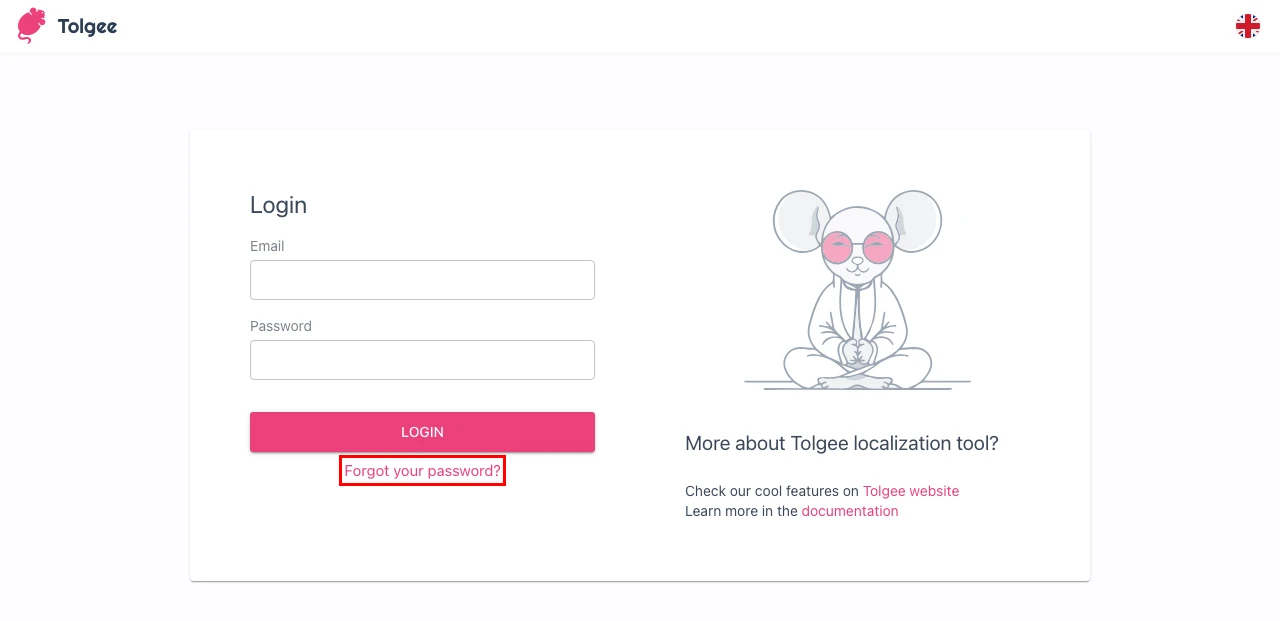
- On the login screen, click the Forgot your password? link below the Login button.
- Enter the email address associated with your account and submit the form.
- Open the email Tolgee sent you and click the link inside. If you originally signed up through a third-party provider (Google, GitHub, etc.) and have never set a password, the email will be titled Initial password configuration instead — the link works the same way and lets you set a password for the first time, so you can also sign in natively going forward.
- Enter a new password and confirm.